
Profile Security & Privacy

Table of Contents
Your LinkedIn profile contains sensitive information: your work history, your email, sometimes your phone number, and your employment status.
In the wrong hands, this information can be used for identity theft, targeted phishing, resume theft, or job scams.
But here’s the paradox: the more visible you are to legitimate recruiters, the more visible you are to scammers.
Your job is to find the balance: maximum visibility to real opportunities, minimum exposure to threats.

Understanding LinkedIn Security Risks
Risk 1: Account Takeover (Hacking)
A hacker gains access to your account and changes your password. Now they control your profile.
What they can do:
- Impersonate you to your connections
- Scam your network
- Steal your data or sell it
- Damage your professional reputation
How it happens:
- Weak password
- Phishing email
- Using same password on multiple sites (one gets hacked, all are vulnerable)
- Public WiFi without VPN
Risk 2: Phishing Scams
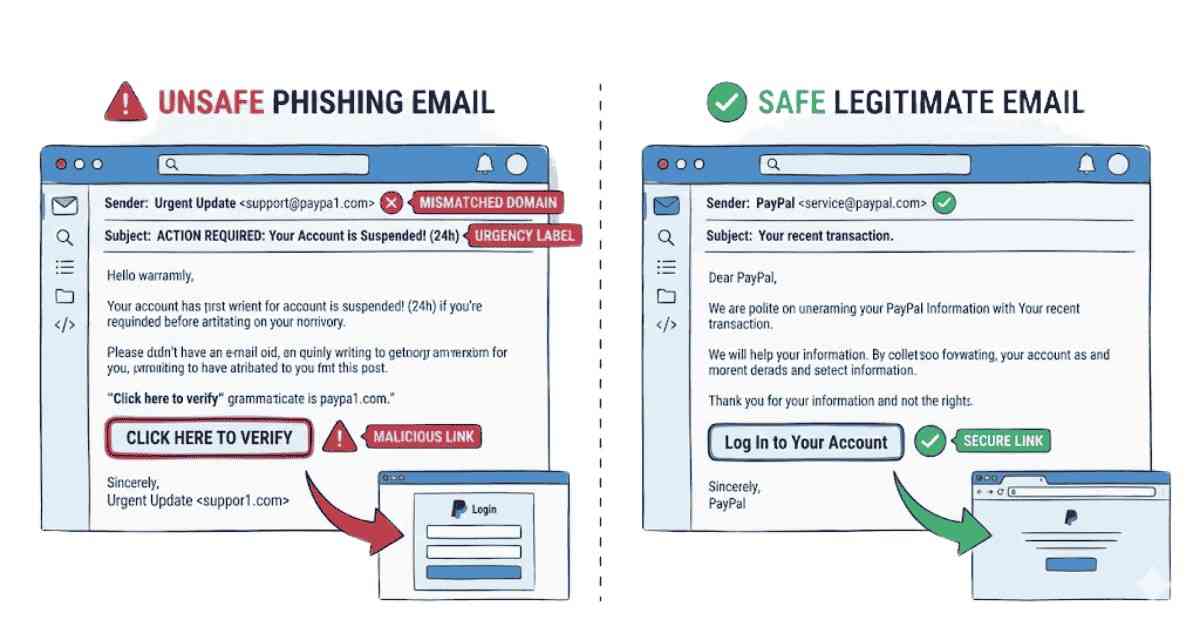
You receive an email that looks like it’s from LinkedIn, asking you to “verify your account” or “confirm identity.” You click, enter your password, and… you’ve handed your credentials to a scammer.
How to spot phishing:
- ❌ Email asks you to click a link to verify credentials (LinkedIn never does this via email)
- ❌ Email asks for password (legitimate companies never ask for this)
- ❌ Sender email doesn’t match official domain (@linkedin.com)
- ❌ Urgent language (“Act now!” “Verify immediately!”)
- ✅ Suspicious feeling—when in doubt, go directly to LinkedIn.com instead of clicking links
Risk 3: Job Scams
You receive a message from a “recruiter” offering an amazing job at a famous company. The job is legitimate, the pay is great, the only catch: they need you to wire money for “background check,” “equipment,” or “processing fee.”
Red flags:
- ❌ Job offer without interview
- ❌ Suspiciously high salary for entry-level role
- ❌ Urgent hiring process (“Decide today!”)
- ❌ Requests for money upfront
- ❌ Communication through LinkedIn messages, not official company email
- ❌ Company email doesn’t match official domain (message from @gmail.com instead of @company.com)
Real recruiters never ask for money upfront.
Risk 4: Data Scraping & Identity Theft
Your profile data (name, email, work history, phone) gets scraped and sold to third parties or used for identity theft.
How it happens:
- Weak privacy settings allow anyone to see your profile
- LinkedIn data breach (happens occasionally)
- Your email/password reused from a hacked site
Risk 5: Resume Theft
Your resume gets stolen and used by scammers posing as you to companies.
Result: Companies contact you about interviews you didn’t apply for, confused by your “duplicate applications.”
“Want More Career Safety & Growth Tips? Expert Frontlines Media Resources
LinkedIn Security Settings: The Essential Checklist
Navigate to Settings & Privacy → Privacy on LinkedIn to control these:
- Who Can See Your Email Address
Recommendation: “Only you” (unless you’re actively job searching, then “Your connections”)
This prevents your email from being scraped or used for phishing.
How to set:
- Go to Settings & Privacy → Visibility
- Find “Email address”
- Select “Only you” (most secure) or “Your connections” (if actively job searching)
- Who Can See Your Phone Number
Recommendation: “Only you”
Unless you specifically give permission in job applications, no one needs your phone number.
How to set:
- Settings & Privacy → Visibility
- Find “Phone number”
- Select “Only you”
- Who Can See Your Last Name
Recommendation: Everyone (but keep your first name visible)
You want recruiters to identify you, but you can control last name visibility if you have privacy concerns.
- Profile Visibility & Public Profile
Recommendation: “Public” (so you show up in recruiter searches)
When your profile is public, search engines and recruiters can find you.
How to set:
- Settings & Privacy → Public profile
- Toggle ON “Your public profile is visible to everyone including search engines”
- Blocking Users
When to use: If someone is harassing you, threatening you, or being inappropriate
How to:
- Click their profile → More (⋯) → Block or report [person]
Blocked users can’t:
- See your profile
- Send you messages
- See your content
- Data Archival & Download
What it does: Download a copy of all your data from LinkedIn (useful for backup or if leaving platform)
How to:
- Settings & Privacy → Data & Privacy → Get a copy of your data

Privacy Settings by Career Stage
For Freshers (Not Yet Employed):


Password Security: The Foundation
Your password is your first line of defense.
Strong Password Requirements:
- Minimum 12 characters
- Mix of uppercase, lowercase, numbers, symbols
- No personal information (name, birthdate, favorite color)
- Unique (not used on other sites)
- Regularly updated (every 6 months)
❌ Weak Password:
- “password123”
- “myname2000”
- “linkedin123”
- “12345678”
✅ Strong Password:
- “Lk2024!BlueGreen$Ocean@42”
- “ThinkDifferent#2024$Marketing!”
- “GreatCareer21#@LinkedIn$Success”
Password Manager Recommendation:
Use a password manager (Bitwarden, 1Password, LastPass) to:
- Generate strong passwords
- Store passwords securely
- Auto-fill passwords (reduces phishing risk)
Manage multiple passwords safely
“Strengthen Your Digital Presence — Build Job-Ready Skills Safely with Our Courses →

Two-Factor Authentication (2FA): The Extra Lock
Two-factor authentication means logging in requires two things:
- Your password
- A code from your phone/email
Even if a hacker steals your password, they can’t log in without the second code.
How to enable on LinkedIn:
- Settings & Privacy → Sign-in & security
- Find “Two-step verification”
- Choose verification method (text message or authenticator app)
- Complete setup
I recommend using an authenticator app (Google Authenticator, Microsoft Authenticator) rather than text, as SMS can be intercepted.

Identifying & Avoiding Scams

When in doubt: Research the company
- Go to their official website (not a link they provided)
- Call their main phone number (listed on website)
- Ask if they’re currently hiring for that position
- Verify the recruiter’s identity
Real companies can verify that they’re hiring.
What to Do If You Suspect a Scam
Step 1: Don’t Share Any More Information
- Stop communicating immediately
- Don’t send money, documents, or personal info
Step 2: Report to LinkedIn
- Click the person’s profile → More (⋯) → Report or block
- Report the scam
Step 3: Report to Official Channels
- Report to the company’s HR directly (call main number)
- Report to job posting site if applicable
- Report to FTC or local authorities if money/identity theft involved
Step 4: Secure Your Accounts
- Change LinkedIn password immediately
- Change email password if compromised
- Enable 2FA if not already enabled
- Check other accounts using same password (change them too)
LinkedIn Safety Features You Should Know
Profile Visibility Control:
“Publicly viewable” means search engines and recruiters can find you. You control what they can see with privacy settings.
Search Appearance:
Check “Who can see your profile in search results?” Setting can be adjusted.
Activity Status:
Your “last active” time shows on your profile. Disable if you want privacy:
- Settings & Privacy → Visibility
- Toggle OFF “Let other members see your last activity”
Contact Information Privacy:
Your phone and address are visible only to you by default. Good security.
Third-Party Data Sharing:
LinkedIn occasionally shares data with third parties. Check:
- Settings & Privacy → Data and privacy
Review what data is shared
Social Engineering & Impersonation Awareness
Social engineering is when someone tricks you into giving information rather than hacking directly.
Example:
“Hi, this is John from HR at [Company]. Your LinkedIn profile got flagged for suspicious activity. To verify, can you confirm your email and phone number?”
You think it’s legitimate, so you share. But it’s a scammer.
How to avoid:
- ✅ Never share personal info via message, even if sender “seems legitimate”
- ✅ Verify through official channels first
- ✅ LinkedIn will never ask for password via message
- ✅ Official companies use official email domains and channels
“Explore More Articles on LinkedIn, Job Portals & Career Strategy →” Read Career Guides →
Protecting Your Data: Long-Term Safety
Regular Audits (Every 6 Months):
- Review connected apps (Settings & Privacy → Apps and websites)
- Remove apps you no longer use
- Review who has access to your profile
Email Security:
- Use strong, unique password for email account
- Enable 2FA on email
- Review connected accounts (who can access your email?)
Credit Monitoring:
- Consider credit monitoring if identity theft is a concern
- Services like Credit Karma offer free monitoring
Regular Password Updates:
- Change LinkedIn password every 6 months
If you suspect compromise, change immediately
Action Steps: Secure Your Profile Today
Day 1: Immediate Security (30 minutes)
- Change LinkedIn password (strong, unique)
- Enable 2FA (authenticator app preferred)
- Check email visibility and phone visibility settings
- Set all to “Only you”
Day 2: Privacy Settings (20 minutes)
- Review public profile settings
- Check who can contact you (turn off messages from strangers if needed)
- Turn off activity status visibility
- Review connected apps and remove unused ones
Day 3: Safety Awareness (15 minutes)
- Check your recent login activity (Settings & Privacy → Account access & security)
- Look for unfamiliar devices or locations
- Change password if anything looks suspicious
Day 4: Documentation (15 minutes)
- Download your data (backup)
- Create a password manager account if you don’t have one
- Store LinkedIn password in password manager
This Week:
- Be cautious of unsolicited job offers
- Verify any recruiter contact through official channels
- Report any suspicious activity to LinkedIn immediately
“Secure Your Profile, Strengthen Your Resume Read Resume Guide →